How to Link Smart Shopper to My FNB Card

November 25, 2025
Linking your Smart Shopper card to your FNB card is a simple process that can be done directly from your FNB app. This allows you to earn and spend your Smart Shopper points with ease. I remember when I first linked my card, I was surprised at how quick and easy it was.
How to link your Smart Shopper card to your FNB card:
1. Log into your FNB App: The first step is to log into your FNB banking app on your smartphone. If you haven't already, you may need to activate your FNB card.
2. Navigate to the eBucks section: Once you are logged in, look for the eBucks section within the app. This is where you will find the option to link your Smart Shopper card.
3. Select "Partners": In the eBucks section, you will see a tab or button labeled "Partners." Click on this to see a list of FNB's partners.
4. Find Pick n Pay: Scroll through the list of partners until you find Pick n Pay. Select it to proceed.
5. Link your Smart Shopper card: You will then be prompted to enter your Smart Shopper card number. Make sure you have your card handy for this step. Once you have entered the number, follow the on-screen instructions to complete the linking process.
I recently helped my mom link her card, and she was so excited to see her points balance right there in her banking app. It makes tracking your rewards so much easier.
By linking your Smart Shopper card to your FNB card, you can enjoy a more seamless shopping experience at Pick n Pay. You can view your points balance, and even spend your points directly from your FNB app.
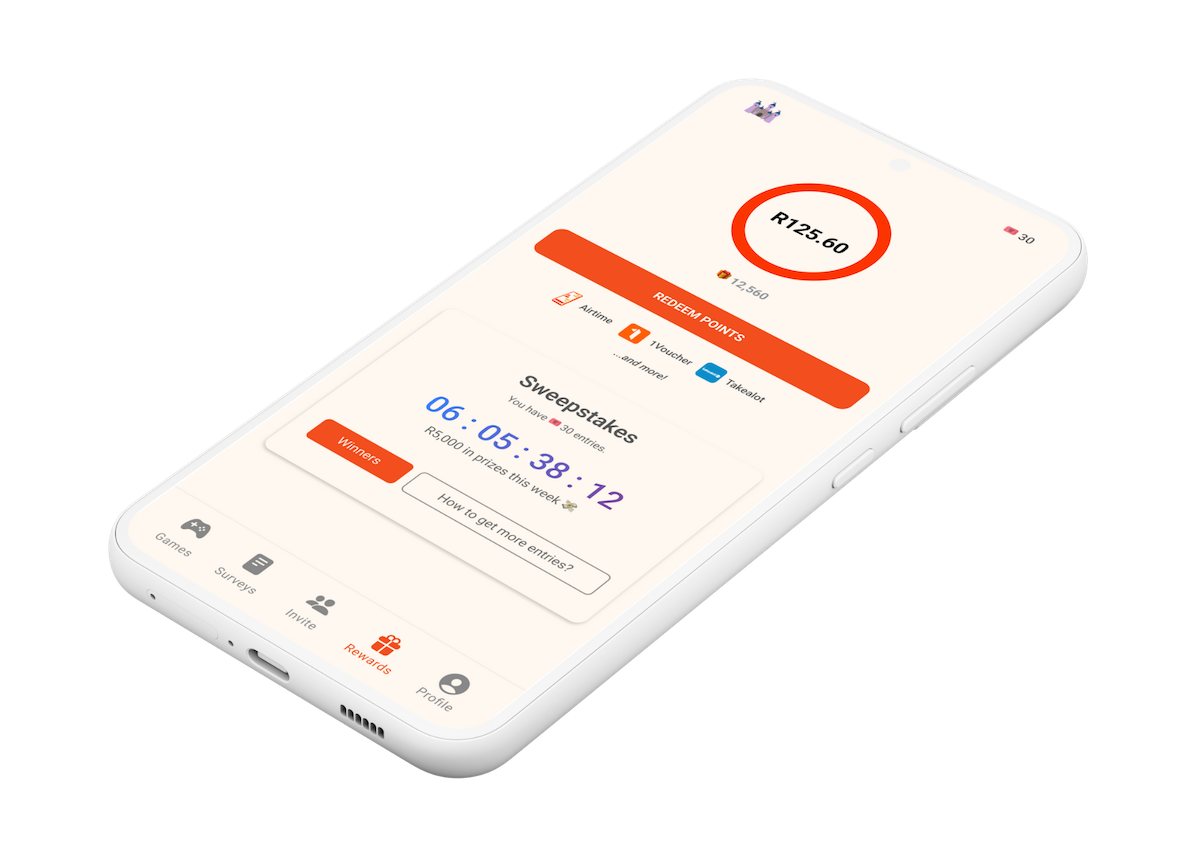
And here’s a little tip for you, if you enjoy earning rewards, you'll love the Points Castle app. You can earn points by completing surveys and playing games, which you can then redeem for vouchers, including Takealot vouchers. It's a great way to get a little something extra for your efforts.