How to Stop Airtime From Being Used as Data

November 5, 2025
It’s so frustrating when you buy airtime for calls and then, poof, it's all gone. And you didn't even make any calls! I remember this one time I had just loaded R50 airtime, and within an hour, it was all gone. I was so confused until I realized my phone had been using my airtime for data. It's a common problem, but the good news is that there's a way to stop it.
The short answer is that you need to change your phone's settings to stop it from using airtime as data. You can do this by turning off mobile data when you're not using it, setting a data limit, or disabling background data usage for certain apps.
Why Does My Phone Use Airtime for Data?
Your phone is designed to keep you connected to the internet. So, when your data bundle runs out, it automatically switches to using your airtime to keep you online. This is called "out-of-bundle" data usage, and it can be very expensive. It's like having a car that automatically starts using expensive champagne as fuel once the regular petrol is finished. It's a recipe for a financial headache.
Another reason is that some apps on your phone use data in the background, even when you're not actively using them. These apps are constantly checking for new messages, updates, and notifications. This can eat up your airtime without you even realizing it.
How to Stop Your Phone From Using Airtime for Data
Here are a few ways to stop your phone from using your airtime for data:
1. Turn Off Mobile Data
The easiest way to stop your phone from using airtime for data is to simply turn off your mobile data when you're not using it. You can do this by swiping down from the top of your screen and tapping on the "Mobile Data" icon.
2. Set a Data Limit
You can also set a data limit on your phone. This will prevent your phone from using any more data once you've reached a certain limit. To do this on an Android phone, go to "Settings" > "Network & internet" > "Data usage" > "Data warning & limit". On an iPhone, you can't set a hard limit, but you can monitor your usage under "Settings" > "Cellular".
3. Disable Background Data Usage
You can also disable background data usage for certain apps. This will prevent those apps from using data in the background. To do this on an Android phone, go to "Settings" > "Apps" and then select the app you want to restrict. Then, tap on "Data usage" and turn off "Background data". On an iPhone, you can do this by going to "Settings" > "General" > "Background App Refresh".
4. Use Wi-Fi as Much as Possible
Whenever you can, connect to a Wi-Fi network. This will save your mobile data and your airtime. I've made it a habit to connect to Wi-Fi at home, at work, and even in cafes. It's a simple change, but it's made a huge difference to my airtime usage.
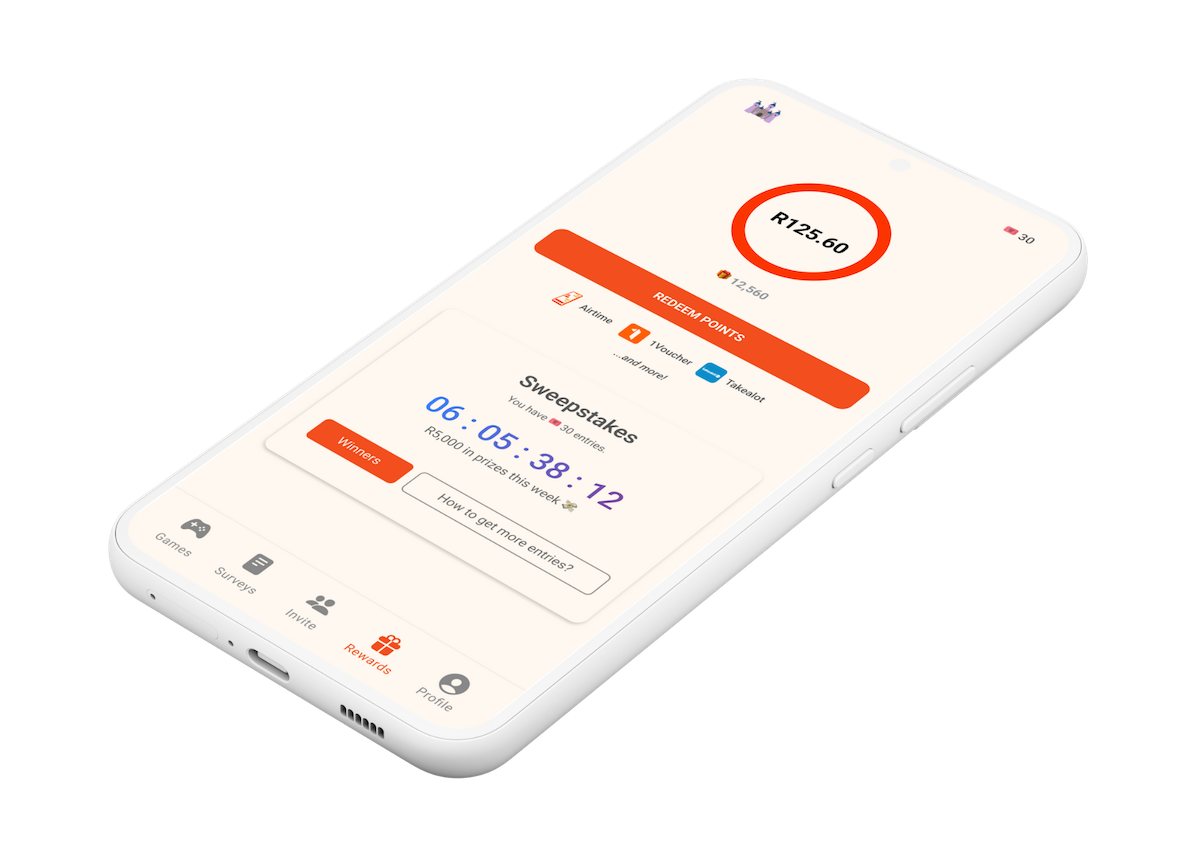
Following these simple steps can save you a lot of money and frustration. And if you're looking for a way to get free airtime, you should check out the Points Castle app. You can earn points by playing games and completing surveys, and then you can redeem those points for airtime and other rewards.